
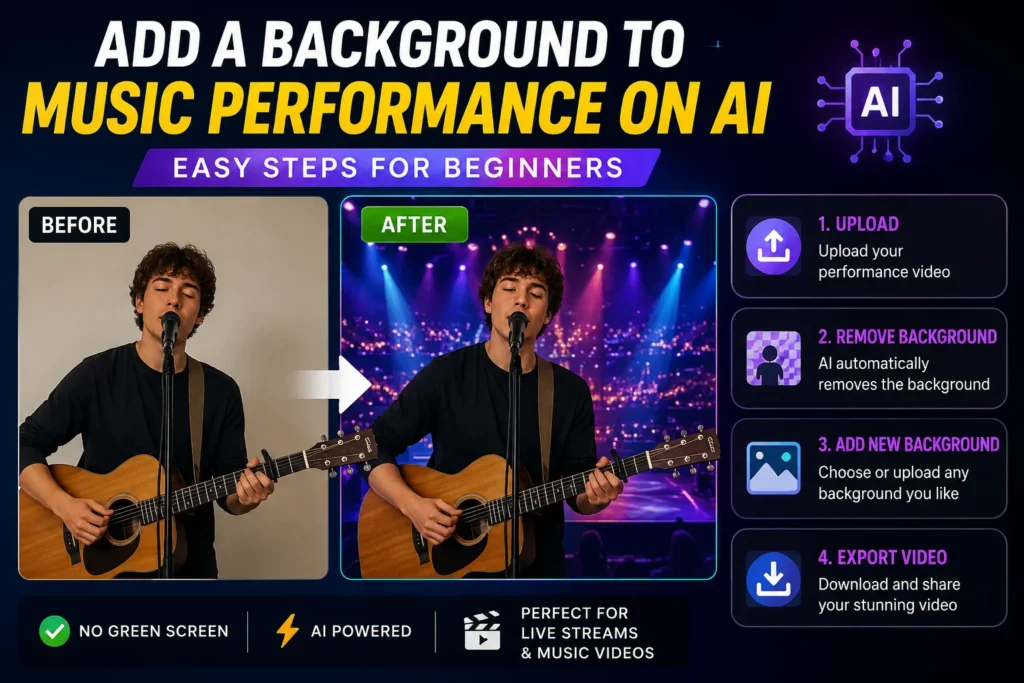
Have you ever watched a music video and wondered how artists perform in stunning locations without leaving the studio? Today, you can add a background to a music performance on AI in just a few steps. Whether you’re a singer, musician, or content creator, AI tools make it easy to create eye-catching visuals without advanced editing skills.
This guide will show you how AI music performance backgrounds work, which tools to use, and how to transform both live and recorded performances into memorable experiences.
- What Does It Mean to Add an AI Background to a Music Performance?
- Benefits of Using AI Backgrounds for Music Performances
- Best AI Tools to Add Backgrounds to Music Performances
- How to Add an AI Background to a Live Music Performance
- How to Change the Background in a Recorded Music Performance
- Tips for Choosing the Right Performance Background
- Common Mistakes to Avoid When Using AI Backgrounds
- Final Thoughts: Elevate Your Music Performances with AI
- Frequently Asked Questions
What Does It Mean to Add an AI Background to a Music Performance?
Adding an AI background means replacing the original background in your video with a new image, animation, or virtual environment. AI background removal tools detect the performer and separate them from the existing scene.
Unlike traditional green screen technology, many modern AI video editing tools offer real-time background replacement. This AI green screen alternative makes performance video editing much easier for beginners.
Musicians use AI video background replacement to create virtual concert backgrounds, improve visual storytelling, and deliver an immersive concert experience to viewers.
Benefits of Using AI Backgrounds for Music Performances
AI concert visuals offer several advantages for music performers.
First, they create a professional stage look. You can turn a bedroom recording into a virtual stage with cinematic performance backgrounds.
Second, they save money. Instead of renting expensive studios or sets, custom performance backgrounds provide affordable alternatives.
Third, they boost audience engagement. Strong stage visual effects and thoughtful performance aesthetics help viewers stay focused and entertained.
Finally, AI-generated backdrops allow artists to customize visuals to match different songs. A calm ballad may use soft animated backgrounds, while upbeat tracks can feature energetic concert visuals.
Best AI Tools to Add Backgrounds to Music Performances
Several AI-powered video editors can help you create impressive music videos.
Prism Live Studio works well for live streaming. It supports music livestream backgrounds and real-time background replacement for creators who perform live.
StreamYard is a browser-based option that offers live streaming overlays, custom image overlays, and multi-camera layouts. It is beginner-friendly and requires no downloads.
VEED.io provides simple drag-and-drop editing with AI background removal features. It is ideal for users who want fast results. You can learn more through VEED’s official support resources.
CapCut is popular among content creators making YouTube performances, TikTok music clips, and other social media videos. It supports vertical video formats and easy editing on mobile devices.
DaVinci Resolve offers advanced tools for video compositing, motion graphics, and seamless transitions. While it has a steeper learning curve, it provides powerful creative options.
How to Add an AI Background to a Live Music Performance
If you want to add a background to a music performance on AI during a live stream, start by choosing a live streaming studio tool like Prism Live Studio or StreamYard.
Before going live, ensure your lighting is bright and even. Good lighting helps AI identify you accurately.
Next, upload or select your preferred virtual background. This could be a concert stage, city skyline, abstract animation, or branded visual.
You can also add custom image overlays, text, logos, and visual branding elements to strengthen your identity as an artist.
Finally, test everything before streaming. Check audio quality, background accuracy, and internet stability to deliver a smooth audio-visual experience.
How to Change the Background in a Recorded Music Performance
Editing a recorded performance is often even easier.
Upload your video into an AI-powered video editor. Use the background removal feature to separate yourself from the original setting.
After removing the background, choose from AI-generated scenes, animated backgrounds, or your own uploaded visuals. Many tools include templates designed specifically for musicians.
Adjust timing and transitions if needed. Small refinements can enhance visual storytelling without distracting viewers.
When finished, review your export settings carefully. Export the video in the correct format and resolution for your intended platform.
Tips for Choosing the Right Performance Background
Choose backgrounds that support your music instead of competing with it.
Match visuals to the mood of the song. Soft, cinematic visuals work well for emotional tracks, while energetic songs can benefit from vibrant stage atmosphere effects.
Use subtle motion. Too many moving elements can pull attention away from your performance.
Think about where your audience will watch. Optimize videos for YouTube, TikTok, and Instagram by considering both horizontal and vertical video formats.
Finally, maintain visual consistency. Similar colors, themes, and styles help build strong visual branding over time.
Common Mistakes to Avoid When Using AI Backgrounds
One common mistake is overusing flashy effects. Excessive stage visual effects can overwhelm viewers.
Poor lighting is another issue. AI tools perform better when performers are clearly visible.
Avoid low-resolution backgrounds. Blurry visuals reduce the quality of your finished video.
Also, don’t forget mobile-friendly formats. Many viewers watch performances on smartphones, so proper export settings matter.
Final Thoughts: Elevate Your Music Performances with AI
AI tools have made professional-looking visuals more accessible than ever before. Whether you’re creating social media videos, livestreaming concerts, or editing recorded performances, there is an option that fits your skill level.
Simple tools like CapCut and VEED are perfect for beginners, while advanced editors provide greater creative control.
The most important thing is to experiment. Great music performances combine creativity, authenticity, and audience engagement. With practice, you can create memorable experiences without expensive equipment or years of editing knowledge.
Frequently Asked Questions
How do I add a background to a music performance using AI?
Use AI video editing tools such as VEED, CapCut, or Prism Live Studio. Upload your video, remove the original background, select a new one, and export the finished version.
Can I change the background of a live music performance without a green screen?
Yes. Many AI tools now offer background replacement without traditional green screen setups by using real-time subject detection.
What is the best app for adding AI backgrounds to music videos?
CapCut is excellent for mobile users and social media creators. VEED is great for browser-based editing, while Prism Live Studio works well for live performances.
How do I add a background image to a music performance video?
Import your video into an editor, remove the existing background, and upload an image or animation that matches your performance style.
Are there free AI tools for changing video backgrounds?
Yes. Tools like CapCut, VEED, and Prism Live Studio offer free versions with basic features that are suitable for beginners.
How do musicians choose the right AI background for performances?
Choose visuals that fit the mood of the song and support the performance. Simple backgrounds often work better than overly distracting effects.