
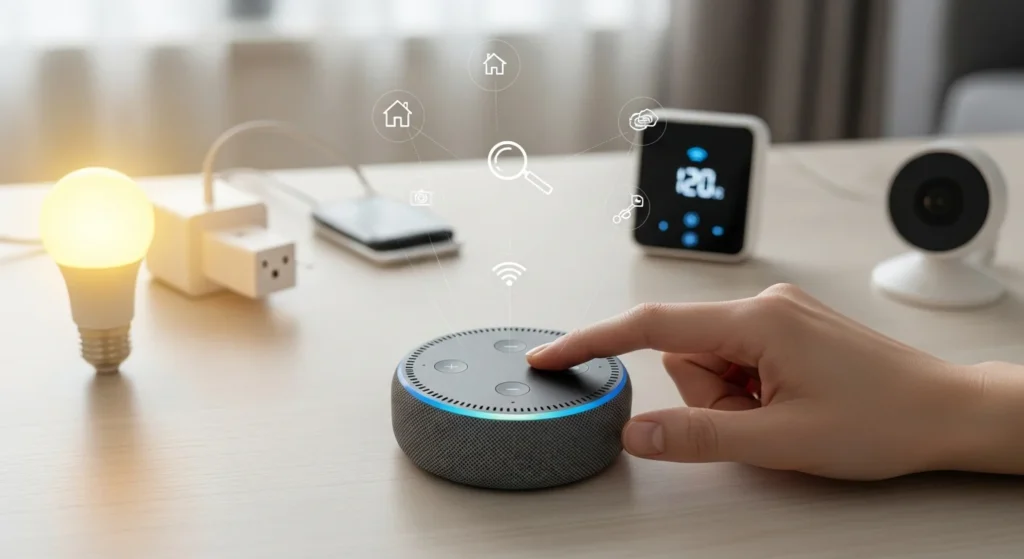
If you have smart lights, plugs, or other smart home devices, you may expect Alexa to find them right away. But many beginners ask the same question: how do I get Alexa to find all smart devices? The good news is that the process is simple once you understand how Alexa works and what it needs.
This guide is written for beginners in the United States. It uses simple language and clear steps so you can set up your smart home without stress. By the end, you will know how to add devices, fix common problems, and keep everything organized in the Alexa app.
- Introduction
- What Alexa Smart Home Setup Means
- Why Discovering All Smart Devices Matters
- What You Need Before Getting Started
- How Alexa Discovers Smart Devices
- Common Smart Device Types Alexa Supports
- Step-by-Step Discovery Process
- Using Voice Commands to Discover Devices
- Troubleshooting Device Discovery
- Grouping and Organizing Devices
- Matter and Interoperability
- Tips to Improve Discovery Success
- Conclusion
- Frequently Asked Questions
Introduction
Amazon Alexa helps you control smart home devices using your voice or your phone. But before Alexa can turn on your lights or adjust your thermostat, it must first discover those devices.
Many people run into issues where Alexa is not finding devices or a device does not show up in the Alexa app. This usually happens because of setup steps that were missed. Once you know what to do, Alexa device discovery becomes much easier.
What Alexa Smart Home Setup Means
Alexa smart home setup means connecting your smart devices to your Alexa account so you can control them with voice commands or the Alexa app. This includes devices like smart lights, smart plugs, cameras, and thermostats.
Most smart products that say Works with Alexa are designed to connect easily. You can check the Alexa-compatible devices list on the product box or on the Amazon product page. These devices are made to work smoothly with Amazon Alexa.
Why Discovering All Smart Devices Matters
When Alexa can find all your smart devices, you get full control of your smart home. You can turn lights on and off, create routines, and manage everything from one app.
If Alexa cannot find a device, voice commands may not work. You may also miss out on features like device groups and rooms. Proper discovery helps you manage Alexa devices easily and keeps your smart home running the way it should.
What You Need Before Getting Started
Before you try to discover devices, make sure you have everything ready.
Compatible Alexa Device
You need an Alexa-enabled device such as Echo, Echo Dot, or Echo Show. Some Echo devices have a built-in Zigbee hub, which helps Alexa discover certain smart devices faster.
Alexa App on iOS or Android
The Alexa app is required to add and manage smart home devices. Download it on your phone or tablet and sign in with your Amazon account. Make sure the app is updated to the latest version.
Wi-Fi Network
Most smart home devices need Wi-Fi to work. Many devices require a 2.4GHz Wi-Fi network instead of 5GHz. Make sure your phone, Echo device, and smart devices are all connected to the same network.
How Alexa Discovers Smart Devices
Alexa uses different methods to find and connect smart devices. Understanding these methods helps you choose the right setup.
Using the Alexa App
The most common way is through the Alexa app. Open the app, go to the Devices tab, and select the Add Device option. Alexa will guide you step by step based on the device type.
Automatic Device Discovery
Some devices are discovered automatically, especially if you have an Echo with a Zigbee hub. When the device is powered on and nearby, Alexa may find it without extra steps.
Manual Add and Skill Linking
Some brands require you to enable an Alexa skill. This is done in the Skills and Games section of the app. After enabling the skill, you link your smart home account so Alexa can sync devices with your account.
Common Smart Device Types Alexa Supports
Alexa supports many smart home devices. Common examples include smart lights, smart plugs and outlets, smart switches, smart thermostats, smart cameras, smart door locks, smart sensors, and smart doorbells.
If a device works with Alexa, it should clearly say so on the packaging or product page.
Step-by-Step Discovery Process
This is the simplest way to get Alexa to find all smart devices.
First, open the Alexa app on your phone.
Next, tap the Devices tab at the bottom of the screen.
Then tap Add Device and choose the type of device you want to add.
Follow the on-screen instructions to put the device into pairing mode.
Wait while Alexa scans for devices and completes the setup.
Once finished, the device should appear in your Alexa device list.
Using Voice Commands to Discover Devices
You can also use voice commands. Say Alexa, discover my devices. Alexa will search for compatible devices nearby.
This works best with Echo devices that have a built-in Zigbee hub. After the scan, Alexa will tell you if new devices were found and added.
Troubleshooting Device Discovery
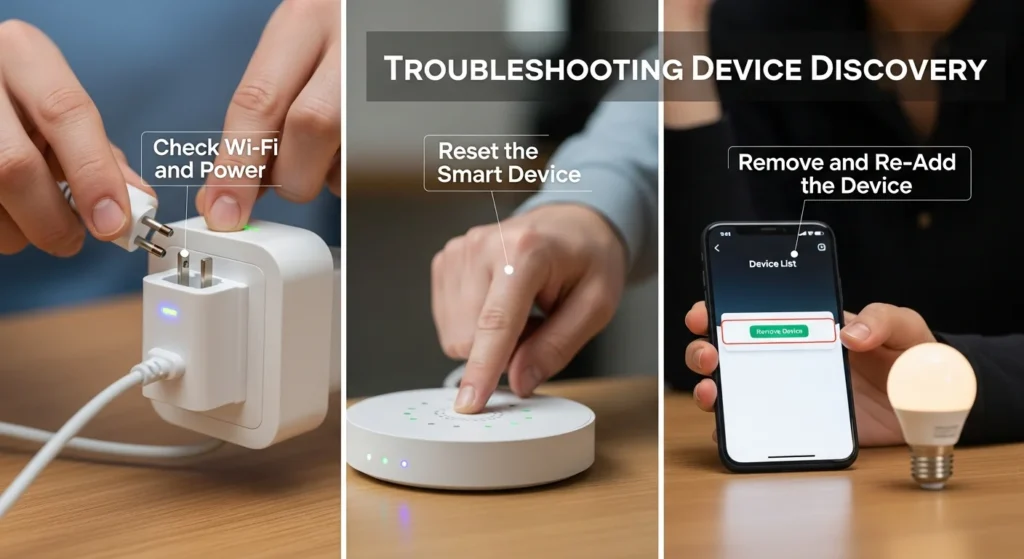
Sometimes Alexa cannot find smart devices. This is common and usually easy to fix.
Check Wi-Fi and Power
Make sure the device is powered on and connected to the same Wi-Fi network as your Alexa device. If needed, reconnect Wi-Fi and try again.
Reset the Smart Device
Resetting the device puts it back into pairing mode. Each device has its own reset method, usually explained in the manual.
Remove and Re-Add the Device
If the device shows up but does not work, remove it from the Alexa app and add it again. Restarting your Echo device can also help.
If Alexa is still not finding devices, updating the Alexa app and checking for firmware updates on the smart device may fix the issue.
Grouping and Organizing Devices
Once devices are added, organizing them makes control easier.
Creating Rooms
In the Alexa app, you can create rooms like Living Room or Bedroom. Add devices to each room so Alexa understands commands like turn off the living room lights.
Device Groups for Easy Control
Device groups let you control multiple devices at once. This is useful for lights, plugs, or other devices you use together. Grouping helps you manage Alexa devices online and keeps everything tidy.
Matter and Interoperability
Matter is a new smart home standard that helps devices work better together. Matter compatible devices are easier for Alexa to discover and set up.
Alexa matter support improves reliability and reduces setup problems. You can learn more about Matter from high-authority sources like WIRED, which explains how it simplifies smart home connections.
Tips to Improve Discovery Success
Always keep the Alexa app updated.
Use a 2.4GHz Wi-Fi network if your device requires it.
Make sure the device is in pairing mode before discovery.
Refresh the Alexa device list if something does not appear right away.
Following these tips can save time and reduce frustration.
Conclusion
Now you know how do I get Alexa to find all smart devices in a clear and simple way. With the right setup, proper Wi-Fi, and the Alexa app, most devices can be added in minutes.
Once everything is connected, you can control devices with your voice, create routines, and enjoy a smarter home. If something goes wrong, basic troubleshooting steps usually solve the problem quickly.
Frequently Asked Questions
How do I get Alexa to find all smart devices?
Open the Alexa app, go to Devices, and tap Add Device. Follow the steps on the screen or say Alexa, discover my devices. Make sure all devices are powered on and connected to the same Wi-Fi network.
How can I see all devices connected to Alexa?
Open the Alexa app and tap the Devices tab. You will see a full list of devices linked to your Alexa account. You can tap any device to manage settings or move it to a room.
Why is Alexa not discovering my devices?
This usually happens when the device is not on the same Wi-Fi network or is not in pairing mode. Try resetting the device, updating the Alexa app, and restarting your Echo device.
How do I get Alexa to discover new devices?
Put the device into pairing mode first. Then use the Alexa app to add it or say Alexa, discover my devices. Alexa will scan and add compatible devices automatically.
How do I get Alexa to recognize my device?
Make sure the device works with Alexa and is linked to your Alexa account. Some brands require enabling a skill in the Alexa app. After linking, refresh the device list or run discovery again.
How do I get Alexa on all my devices?
Install the Alexa app on each phone or tablet and sign in using the same Amazon account. This lets you control all connected smart home devices from any device you own.


Pingback: How Do I Get Alexa to Find All Smart Devices - Easy 2026 Guide | Web3Wire
unlocker.ai – The Ultimate AI Tool for Bypassing Restrictions and Unlocking Content Seamlessly!